Device Details
Overview
| Name | Version: | Rutt-Etra Mesh 1.0.3 |
| Author: | nwhetsell |
| Device Type: | Audio Effect |
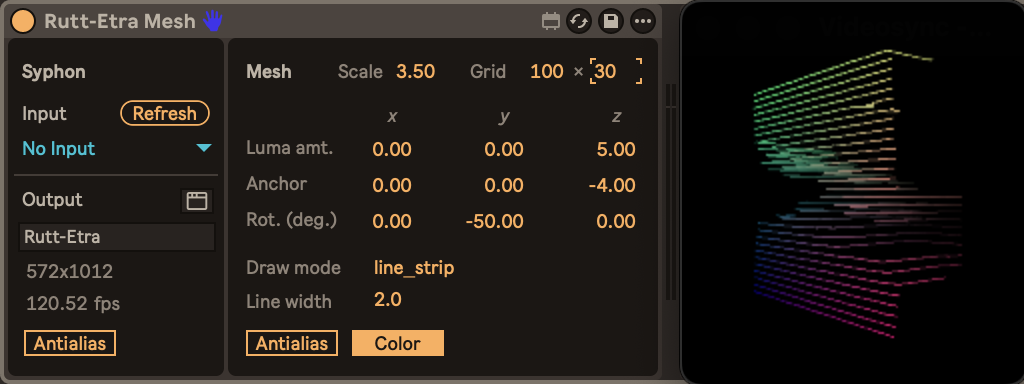
| Description: | This is a Max for Live device that attempts to re-create the Rutt/Etra Video Synthesizer from the 1970s. It is very loosely based on a Max patch that was posted to the Cycling ’74 forum in 2016 (https://cycling74.com/forums/rutt-etra-video-synth-rip-bill-etra#reply-58ed21fb6908cf22c8399680). This device is intended to be used with Videosync and relies on Syphon, which is only available on macOS. This device is effectively non-functional on Windows. IMPORTANT: Before using this effect, you should enable Live return tracks to be used as Syphon outputs from Videosync. To do this, show Videosync’s settings (choose Videosync > Settings), select the Video tab, and then enable the Return Tracks box in the Syphon Video Output section. Here is a typical workflow: 1. Create a track (audio or MIDI) for the video that will be input to this device, as well as a return track; set the level from the audio/MIDI track to the return track to 0 dB; and set the output types of **both** the audio/MIDI track and the return track to Sends Only. (Choose View > Mixer Controls > In/Out or press Command-Option-I if output type choosers aren’t visible; output type is usually Main by default.) 2. Add this device to a new audio track, click Refresh to update the menu of inputs, and then choose the return track you used in step 1 (for example, Videosync Return A) for the input. 3. Add Videosync’s External In device to a new MIDI track, change its input type to Syphon, and choose Live Mesh from the Video From menu. When you play the video in the audio/MIDI track you used in step 1, it should now be routed through this device, and then into the External In effect you created in step 3. Note that this device only draws the lines associated with Rutt/Etra video synthesis; it doesn’t add pixelation, chromatic aberration, or anything else to give the effect character. One way to add such effects in Videosync is with ISF Shader devices using, for example, the Cathode (https://editor.isf.video/shaders/68894db22f6812001a5621f3) and/or VHS Chaos Master (https://editor.isf.video/shaders/67f3e017afd915001ad43196) shaders. Under the hood, this device uses a jit.gl.mesh (https://docs.cycling74.com/reference/jit.gl.mesh) object with its draw_mode attribute set to line_strip. However, this device exposes the jit.gl.mesh object’s draw_mode attribute, which you can use to create effects other than Rutt/Etra lines. For example, you can set the draw_mode to points for an effect similar to a LIDAR point cloud. This device uses the 16px “browser” icon (https://primer.style/octicons/icon/browser-16/) from Octicons, which is distributed under the MIT license. The source code of this device is available at https://github.com/nwhetsell/rutt-etra-mesh. |
Details
| Live Version Used: | 12.3.2 |
| Max Version Used: | 9.1.2 |
| Date Added: | Dec 18 2025 19:41:31 |
| Date Last Updated: | Feb 28 2026 20:58:07 |
| Downloads: | 137 |
| ⓘ License: | None |
Average Rating
Log in to rate this device |
-n/a- |
Files
| Device File: | Rutt-Etra Mesh.amxd |
Login to comment on this device.
Browse the full library